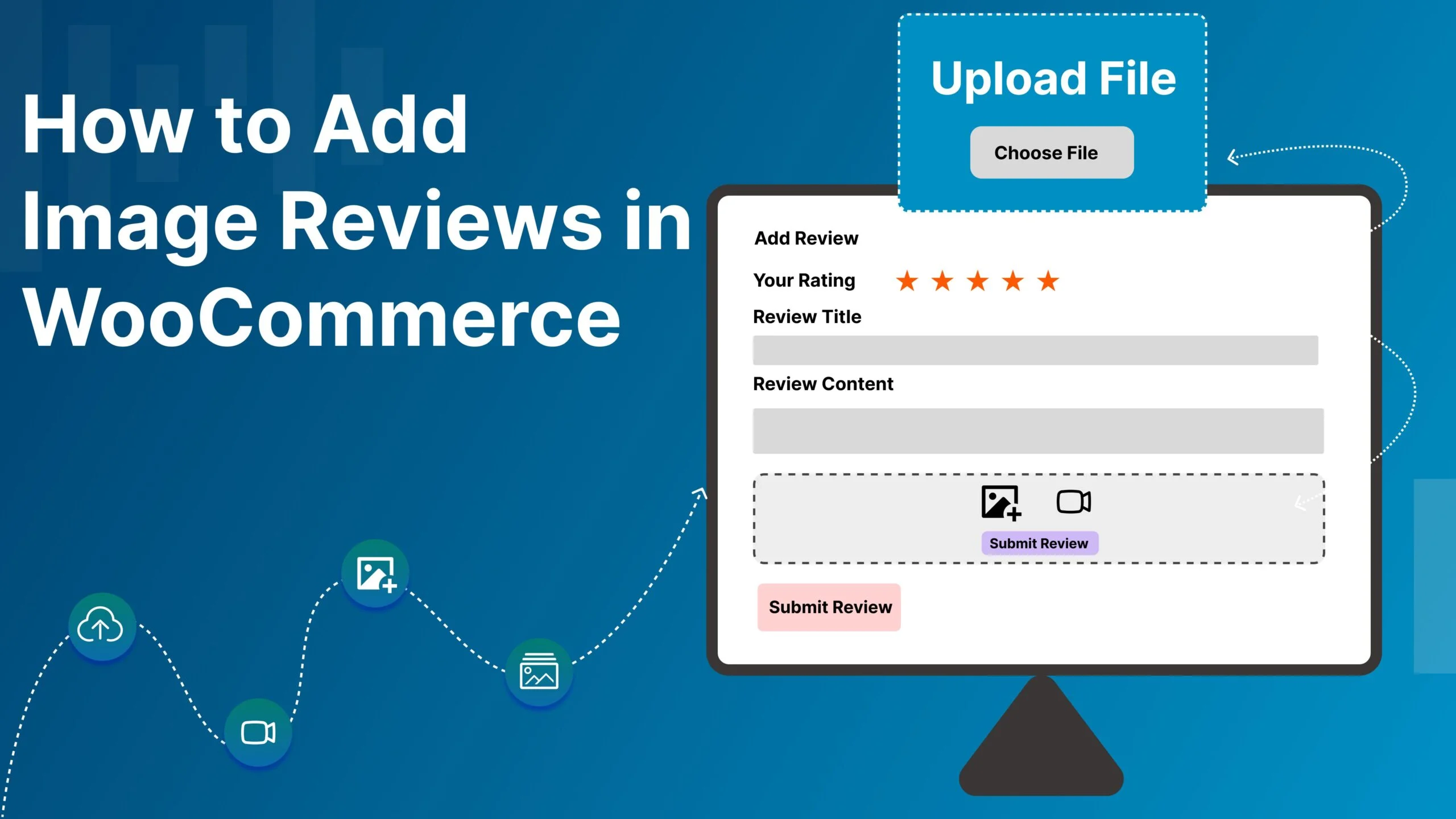
How to Add Image Reviews in WooCommerce (Using Your Rate And Review Pro Plugin)
Adding image reviews to your WooCommerce store is one of the most powerful ways to build trust and boost conversions. Shoppers don’t just want to read reviews—they want to see real product experiences.
In this guide, we’ll walk through how to add image reviews using your plugin Rate And Review Pro, along with best practices and SEO benefits.
🚀 Why Image Reviews Matter
Text reviews are helpful, but image reviews take things to the next level.
Key Benefits:
- 📸 Build trust with real customer photos
- 📈 Increase conversion rates
- 🛒 Reduce product return rates
- ⭐ Improve SEO with user-generated content
- 💬 Enhance engagement and social proof
🔧 What is Rate And Review Pro?
Rate And Review Pro is your custom WooCommerce plugin that enhances the default review system by allowing:
- Image uploads in reviews
- Voting (helpful/not helpful)
- Multiple layouts (Grid & List)
- Image sliders & popups
- Advanced filtering options
- Fully responsive design
- Admin moderation controls
🛠️ How to Add Image Reviews (Step-by-Step)
1. Install and Activate the Plugin
First, upload your plugin to WordPress:
- Go to Dashboard → Plugins → Add New → Upload Plugin
- Upload Rate And Review Pro
- Click Install Now → Activate
2. Enable Image Upload in Reviews
After activation:
- Navigate to WooCommerce → Settings → Reviews (or plugin settings panel)
- Enable:
- ✅ Allow image uploads
- ✅ Set max image size
- ✅ Define allowed formats (JPG, PNG, WebP)
3. Customize Review Form
Modify your review form to include image upload:
- Add Upload Button for images
- Set max number of images per review
- Optional: Add drag-and-drop uploader
💡 Tip: Keep it simple—too many fields can reduce submissions.
4. Display Image Reviews on Product Page
Your plugin already supports multiple display options:
- 🧱 Grid Layout – Clean and modern
- 📃 List Layout – Detailed view
- 🎞️ Image Slider – Highlight top reviews
- 🔍 Popup Lightbox – Zoom images
5. Enable Review Voting System
Allow users to vote on reviews:
This pushes the best reviews (with images) to the top.
6. Moderate Reviews from Admin Panel
- Approve/reject image reviews
- Remove inappropriate content
- Highlight featured reviews